Skip to Content

Loading The Site On Your Smartphone

Loading The Site On Your Smartphone

For Your iOS Devices:

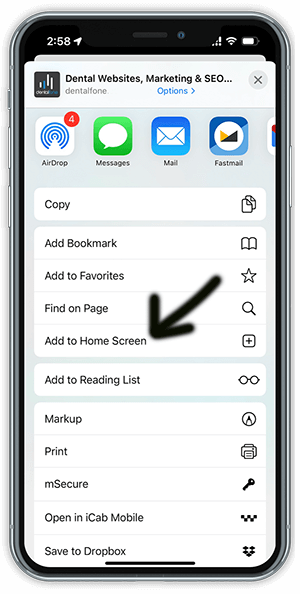
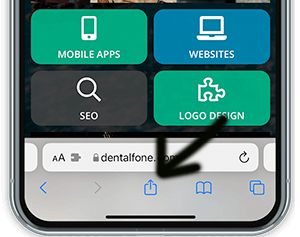
To add an icon to the home screen on your iPhone, iPod Touch or iPad when you’re looking at the home page of the app in Safari select the button shown below and scroll to and select “Add to Home Screen.”  You must be using the Safari browser to view the app in order to see this option.
screenshot-phone-image
 
screenshot-phone-home

For Your Android Devices:

On Android it’s slightly more involved, depending on the browser being used:

  • For recent Samsung devices using the built in browser, simply click the menu button (bottom left on the Galaxy S4) and select “Add Shortcut” to put the icon on your home screen. The icon should be available on your home screen for easy access.  Please note, this may not work on all versions of Android.
  • If you have loaded the most recent version of Google Chrome (please update if you have not already), simply select the menu key while on the home page of the app and select “Add to Home Screen.”
  • For other Browsers, start by bookmarking the page you want to add to the home screen.
  • For Chrome you select the menu key and then press the small “star” in the upper right hand corner, and save the bookmark in the folder of your choice.
  • Select the menu again and choose bookmarks. Locate the bookmark to save to the home screen and press and hold it until the pop up menu displays.
  • Select “Add to Home Screen” to add the icon to your phone’s home screen for easy access.
  • The process may vary slightly from device to device or browser to browser, but should work similarly to the above in most cases.
  • Older Android devices may show a generic star icon for the app instead of the customized button.

For Your Windows 8 and later Mobile Devices:

  • Open the application in your browser using a QR code scanner.
  • In the bottom right corner click on the 3 dots and select “pin to start” to add to your home screen.

QR Scanners

Most new smartphones can scan QR Codes using the built in Camera App. Just go to take a picture but don’t click the camera button, a pop-up should display when viewing the QR code through your phone that will allow you to click the link provided by the code. If your phone doesn’t support QR codes in the camera app, you can download a QR Code Scanner app from the appropriate app store for your phone.
 

Frequently Asked Questions

Looking for a practice in the

Virginia
areas
? Call 703-449-8888 to schedule your appointment today!

Contact our office today to request your appointment!

Logo

Northern Virginia Oral Surgery Centers

Alexandria Office

ADDRESS

6354 Walker Lane, Suite 260
Alexandria, 
VA 
22310

PHONE

Northern Virginia Oral Surgery Centers

Ashburn Office

ADDRESS

20405 Exchange St. Suite 251
Ashburn, 
VA 
20147

PHONE

Fairfax Office

ADDRESS

4211 Fairfax Corner E Ave, Suite 235
Fairfax, 
VA 
22030

PHONE

Falls Church Office

ADDRESS

6400 Arlington Blvd. Suite 10
Falls Church, 
VA 
22042

PHONE

Northern Virginia Oral Surgery Centers

Gainesville Office

ADDRESS

7500 Iron Bar Lane, Suite 215
Gainesville, 
VA 
20155

PHONE

Northern Virginia Oral Surgery Centers

Warrenton Office

ADDRESS

400 Holiday Ct, Suite 203
Warrenton, 
VA 
20186

PHONE

Appointment Request
Opt-in to electronic communication
By submitting this form, you agree to receive email, text, and phone communications from our office. SMS Messages from the office will include: appointment reminders and follow-ups regarding due dates and scheduled appointments. Messaging frequency may vary. Our Privacy Policy and Terms & Conditions can be viewed by clicking here. Users will have the option to opt out of receiving texts by replying STOP. For assistance you may reply HELP. Standard data rates may apply.

Please note that e-mail is not a secure form of communication. Medical information placed here may not be confidential. This form should not be used by children under the age of 18. If you prefer to speak to us directly, you are also welcome to call us so that we may assist you.
Sending

Alexandria Office |
6354 Walker Lane, Suite 260
Alexandria,
VA
22310
703-278-3403
Ashburn Office |
20405 Exchange St. Suite 251
Ashburn,
VA
20147
703-342-4220
Fairfax Office |
4211 Fairfax Corner E Ave, Suite 235
Fairfax,
VA
22030
703-449-8888
Falls Church Office |
6400 Arlington Blvd. Suite 10
Falls Church,
VA
22042
703-534-6500
Gainesville Office |
7500 Iron Bar Lane, Suite 215
Gainesville,
VA
20155
571-248-5838
Warrenton Office |
400 Holiday Ct, Suite 203
Warrenton,
VA
20186
540-347-0274
DESIGN AND CONTENT ©
2013-
2026
BY
DENTALFONE